
Meta Muse file limits
Meta Muse Voice Transcribe has a narrower network contract than the general HyperWhisper Cloud limit. The upload must meet all these conditions:- The file is a RIFF/WAVE file with mono, 16-bit integer PCM audio.
- The sample rate is 16 kHz or 24 kHz.
- The normalized file is not more than 32 MB.
- The audio is not longer than 10 minutes.
.wav, .mp3, and .m4a imports for Cloud and direct Meta Muse modes. They convert the input to a 16 kHz mono PCM WAV before the upload. They then check the 32 MB and 10-minute limits on the converted file.
macOS sends the first file through the normal HyperWhisper Cloud path. If Meta rejects a non-WAV format, macOS converts it to a 16 kHz mono PCM WAV and tries one more time. A WAV that has an unsupported sample format does not get this retry. Convert that WAV to mono PCM16 at 16 kHz or 24 kHz first.
- macOS
- Windows
Open the file picker
Click the HyperWhisper menu bar icon. Hover over Transcribe File, then select the mode. A standard macOS file picker opens immediately.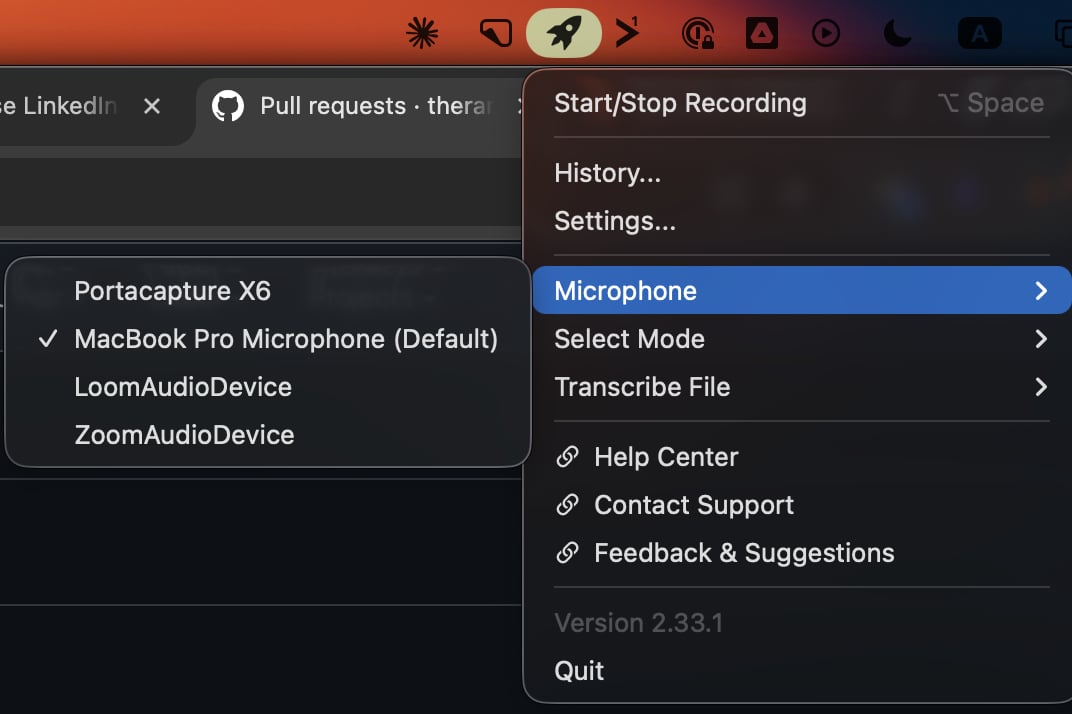
Supported formats
HyperWhisper accepts most common audio containers and the two main video containers. For a video file, HyperWhisper extracts the audio track on your computer before the transcription.Each cloud provider supports a different set of audio formats. If you select a format that the provider does not accept, HyperWhisper stops before the upload. It shows the formats that the provider supports. You do not wait for a long upload and then get an unclear API error.
Automatic WAV conversion for MAI-Transcribe
The Microsoft MAI-Transcribe engine on HyperWhisper Cloud accepts WAV, MP3, and FLAC only. This applies to both of its models, MAI-Transcribe 2 and MAI-Transcribe 1.5. macOS keeps your recordings as M4A, and it converts an imported video to M4A. The server thus refuses the upload.macOS repairs this for you. On the refusal, it converts the audio to a 16 kHz mono WAV and sends the audio one more time. It makes this second attempt one time only, and it deletes the temporary WAV file after the attempt. The conversion applies to dictation and to file transcription.If the conversion fails, or the WAV file is larger than the 300 MB server limit, HyperWhisper shows the original error. Select a different Cloud engine for that mode.File size limits
Local models have no file size limit. Each cloud provider has a different limit. HyperWhisper applies the limit before the upload:If the file is too large for the provider of the selected mode, HyperWhisper shows an error. The error gives the file size, the limit of the provider, and the name of the provider. To transcribe larger files, change the mode to a different provider (for example, HyperWhisper Cloud or a local model).
What happens during transcription
A floating progress popup appears when you select the file. The popup shows three stages:1
Preparing (0–15%)
HyperWhisper makes sure that the file size and the format are correct. It copies the file into your recordings folder. For a video file, it extracts the audio track. If this option is on and the file is 30 seconds or longer, it also runs VAD silence trimming.
2
Transcribing (15–85%)
HyperWhisper sends the audio to the local model or the cloud provider of your mode. The progress bar moves while the provider does the work.
3
Finishing (85–100%)
HyperWhisper applies the post-processing rules of the mode (formatting, vocabulary, custom prompt). It saves the transcript. The main window then shows History, where you can copy or edit the result.
VAD trimming
If Voice Activity Detection is on in settings, HyperWhisper trims imported files of 30 seconds or longer. It removes the silence at the start and at the end before it sends the file to the provider. HyperWhisper transcribes the trimmed file and keeps the original audio. You can change between the two versions in the History view.After transcription
On both platforms, the result appears in History with the original audio. In History, you can do these tasks:- Copy the text or the post-processed version to your clipboard again
- Run a different mode on the same file
- Edit the transcript directly
- Delete the entry and the saved audio