
This page describes Auto Paste on macOS. On macOS, Auto Paste needs the Accessibility permission described below. Windows has the same Auto Paste feature, but it operates differently. Windows sends a Ctrl+V keystroke and does not use UI Automation. Windows does not need the Accessibility permission. For the Windows details, see the Windows tab under Text Output & Formatting → Auto Paste.
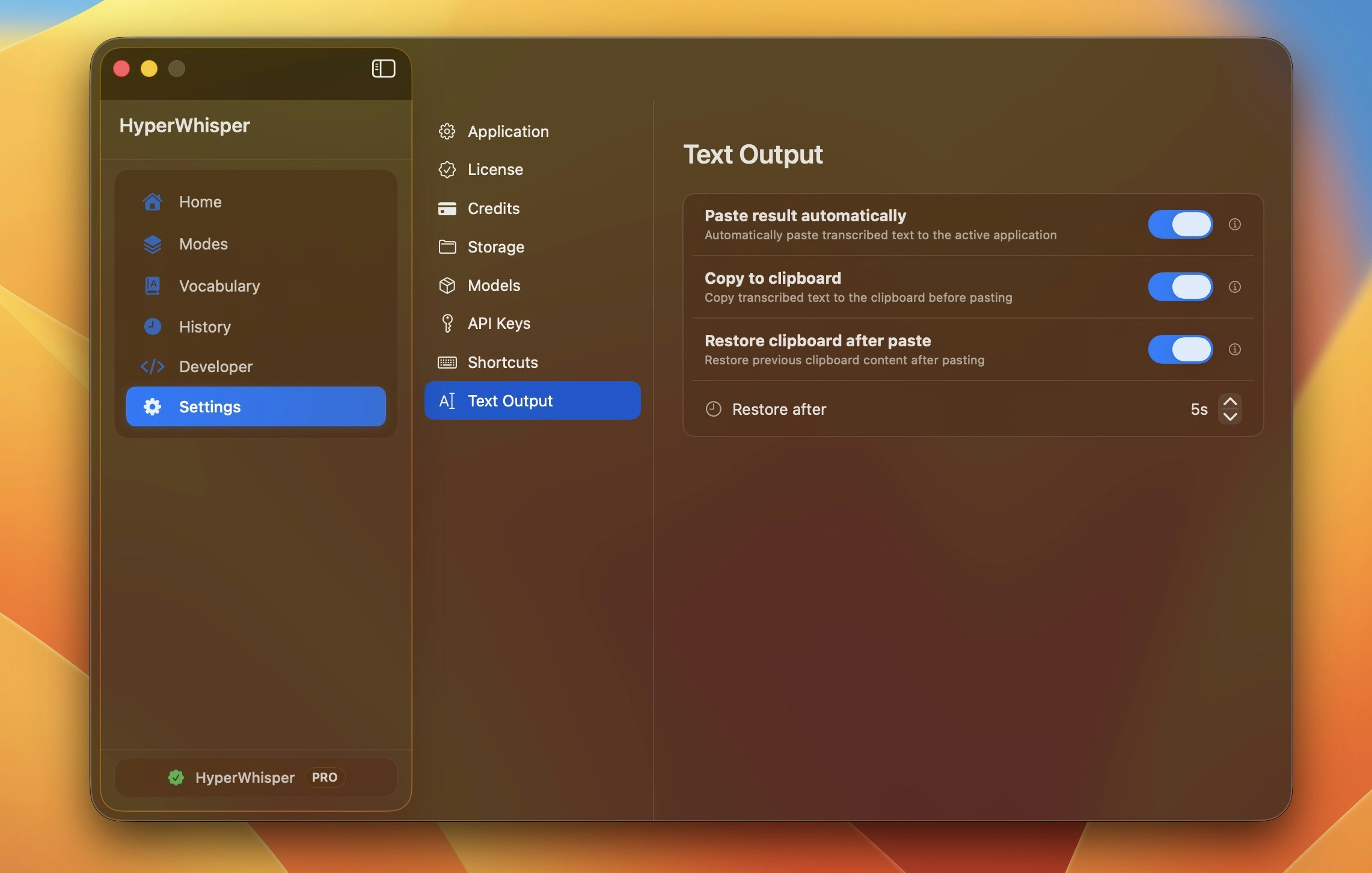
How Auto Paste Works
- When a recording stops, HyperWhisper copies the transcript to the clipboard.
- If “Paste result automatically” is enabled, the app focuses the current application for a moment. Then it sends a standard paste command.
- After the paste, HyperWhisper restores the previous clipboard contents. The delay before this restore is configurable. You keep the item that you copied before. If you copy something during the delay, the app skips the restore and keeps your new copy.
Enable Auto Paste
- Open Settings → Text Output.
- Enable Paste result automatically.
- If an app processes a paste slowly, increase the clipboard restore delay. This delay is a single setting that applies to every app, not a per-app value.
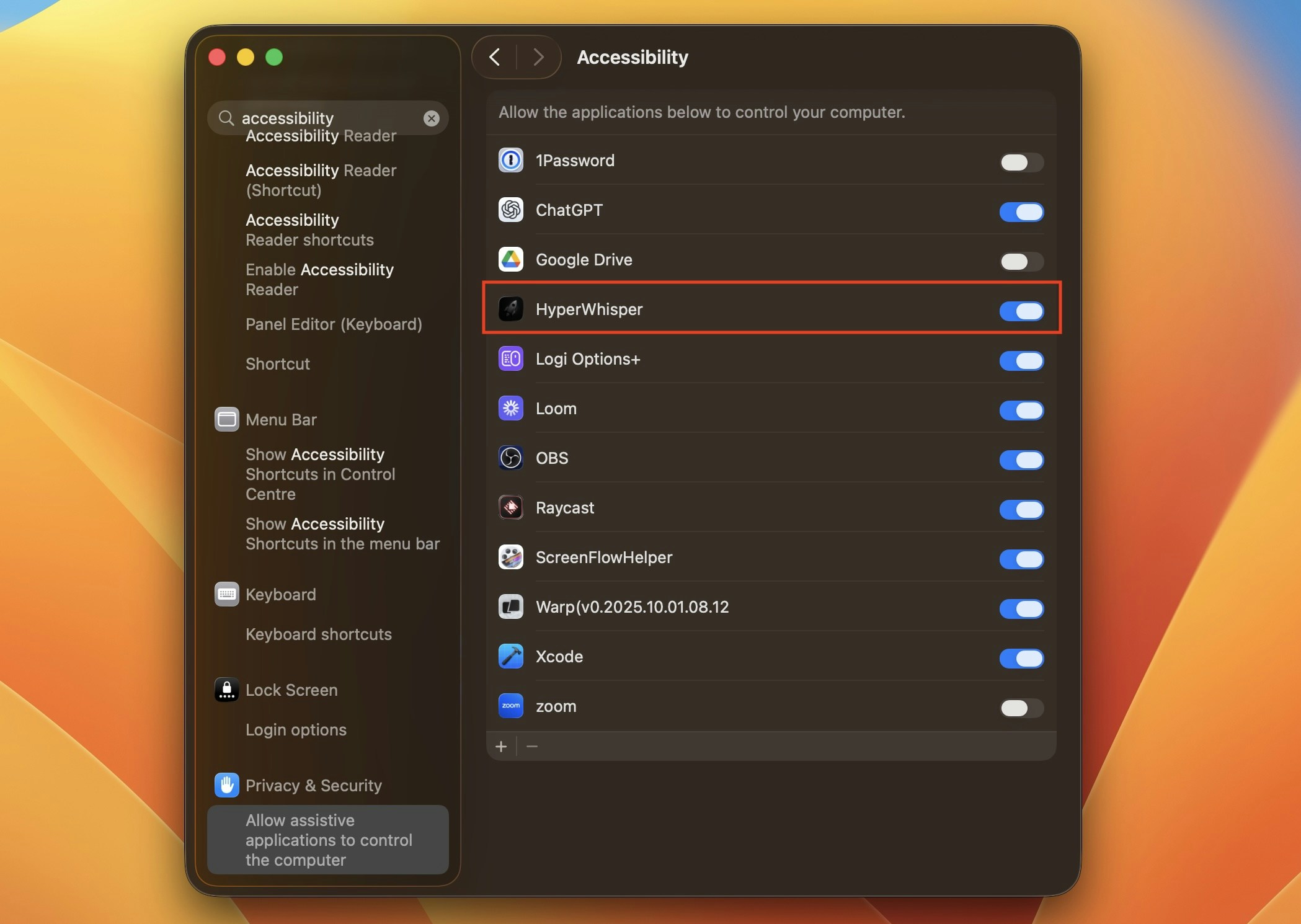
Auto Paste needs the Accessibility permission. With this permission, HyperWhisper can send the paste keystroke for you.
Required Permission
Grant the Accessibility permission to make Auto Paste operate correctly:- Go to
System Settings → Privacy & Security → Accessibility. - Unlock the list. Then enable HyperWhisper. A development build from Xcode shows the Xcode DerivedData path, not
/Applications/HyperWhisper.app. Release builds and development builds use the same bundle ID. The install path, not a different name, separates the two entries in this list. If you switch between the two builds, enable both entries. - If you changed the setting while the app was open, restart the app.
Troubleshooting
- Make sure that the Accessibility permission is granted and that the toggle is on.
- Make sure that the foreground app accepts a paste. Use Notes or TextEdit for a test.
- If the paste is blocked, read the in-app logs for Accessibility actions.
- Disable clipboard managers for a test. A clipboard manager can overwrite the restored entry.
- macOS only: HyperWhisper does not paste automatically when the target app quits during the recording. It also does not paste automatically when a new app takes the process ID of the target app before the paste. HyperWhisper also does not paste automatically when it did not capture a target app and a different app is in front. This guard keeps the transcript out of the wrong window. The transcript stays on the clipboard, and the app shows no message. The clipboard restore does not run in this case, so the transcript does not disappear after the restore delay. Paste the transcript manually with ⌘V.