> ## Documentation Index
> Fetch the complete documentation index at: https://hyperwhisper.com/docs/llms.txt
> Use this file to discover all available pages before exploring further.
# Custom Vocabulary
> Teach HyperWhisper the names, acronyms, and phrases it should never miss — and share your list across devices.
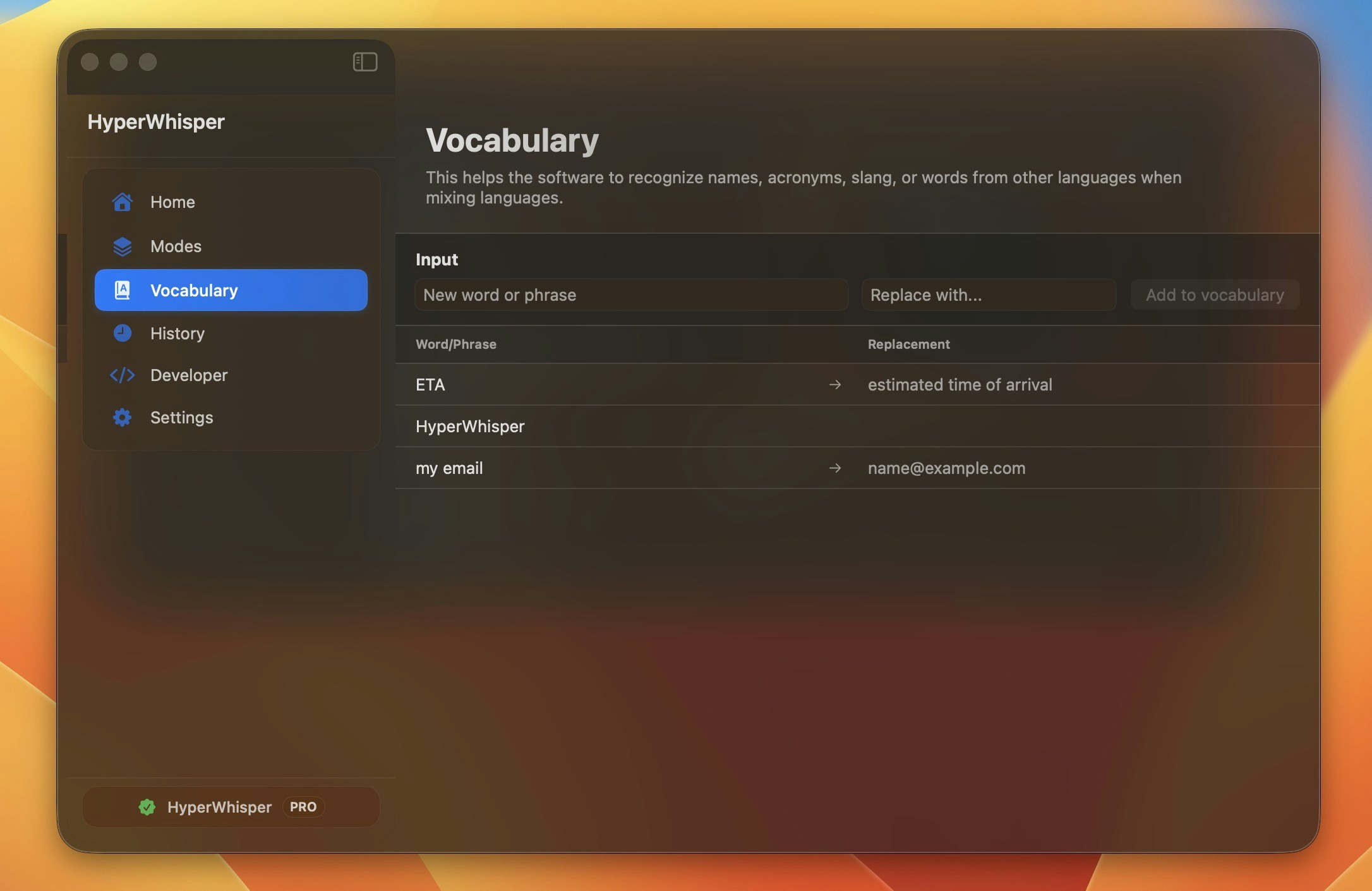
Use the Vocabulary workspace to keep domain-specific terms, product names, and shorthand accurate. Entries are stored locally and applied everywhere HyperWhisper formats text — both the raw transcript and any AI cleanup pass.
 ## Adding New Entries
1. Open the **Vocabulary** tab in the sidebar.
2. Type the word or phrase you expect to speak.
3. Press `Return` to add it as a recognition hint, **or** press `⌘ Return` to expand a replacement field below the input.
4. If you opened the replacement field, type the text you want substituted, then press `⌘ Return` again to confirm.
The replacement field stays highlighted in blue while it is active. Press `Esc` to collapse it without saving a replacement.
1. Open the **Vocabulary** page from the sidebar.
2. Type the word or phrase in the input field.
3. Press `Enter` to add it as a recognition hint, **or** press `Ctrl+Enter` to open a replacement field below the input.
4. If you opened the replacement field, type the replacement text, then press `Ctrl+Enter` again to confirm.
Press `Esc` to collapse the replacement field without saving a replacement.
The list is sorted alphabetically so you can spot duplicates quickly. Duplicate words (matched case-insensitively) are rejected with an alert rather than silently overwriting an existing entry.
## How Vocabulary Is Used
Vocabulary entries work in three distinct ways depending on their type and the transcription provider you are using.
### Recognition hints (no replacement)
Entries without a replacement are submitted as keyword hints to cloud providers that support them. This nudges the model toward the correct spelling without rewriting anything in the output.
* **Deepgram** — sent as keyword boosting parameters (up to 100 terms; a warning appears on macOS if you exceed this limit).
* **OpenAI Whisper, Soniox, HyperWhisper Cloud** — sent as prompt vocabulary terms.
* **ElevenLabs** — sent as repeated `keyterms` multipart form fields (Scribe v2 only; capped at 100 terms, terms longer than 50 characters are dropped; Scribe v1 does not support vocabulary).
* **AssemblyAI, Gemini** — sent as key-term context.
* **Grok STT, Mistral** — these providers do not support custom vocabulary hints; entries are acknowledged but not forwarded.
For the **local Parakeet model on Windows**, entries without replacements are matched phonetically using the Beider-Morse algorithm (via the shared Rust core). Words of two characters or fewer are excluded to avoid false positives.
### Text replacements
Entries with a replacement are applied by regex after transcription, before AI post-processing runs. Matching is case-insensitive and word-boundary anchored, so "eta" only matches the standalone abbreviation — not words like "metadata". Stray leading or trailing spaces in both the word and replacement are trimmed automatically.
### AI post-processing context
All vocabulary entries (with and without replacements) are injected into the system prompt sent to AI post-processing. This helps the model understand your terminology when cleaning up text for Meeting, Custom, and other presets.
## Managing the List
* **Edit** — hover any row to reveal the pencil icon, or click it to load the entry back into the input field.
* **Delete** — hover any row to reveal the trash icon.
* Entries are alphabetized; the list shows the original phrase, an arrow indicator when a replacement exists, and the replacement text.
## Backup and Import
Your vocabulary list travels with any HyperWhisper backup file and can be shared across devices or between macOS and Windows.
### Exporting your vocabulary
Go to **Settings → Backup**.
Toggle on **Vocabulary**. You can include or exclude Settings, Modes, and API keys independently. To export vocabulary alone, toggle everything else off.
Click **Export** and choose a save location. The file is saved as a `.hwbackup.json` file in the universal cross-platform format.
Go to **Settings → Backup**.
Click **Export Backup** and choose what sections to include. The file is saved as a `.hwbackup.json` file.
### Importing vocabulary
Go to **Settings → Backup**.
Click **Import** and select a `.hwbackup.json` file. HyperWhisper reads the file and shows you what it contains before changing anything.
The import sheet shows a summary: how many words are **new** (will be added) and how many already **exist** in your list. If there are conflicts, choose whether to **Skip** existing entries or **Replace** them with the values from the file.
Click **Import**. New words are added; your existing list is never wiped.
Go to **Settings → Backup**.
Click **Import Backup** and select a `.hwbackup.json` file. HyperWhisper inspects the file and presents a section-selection dialog showing what it contains.
Tick **Vocabulary** (and any other sections you want). The import merges new words into your existing list — it does not delete anything already there.
### Merge behavior
Vocabulary import is always additive — it never deletes existing words.
| Incoming word | Action |
| --------------------------------------------- | ------------------------------------------------------------ |
| Not in your list | Added as a new entry |
| Already in your list (case-insensitive match) | Skipped, or replacement updated — your choice at import time |
Matching is case-insensitive and trims surrounding spaces, so `"kubernetes"` and `"Kubernetes"` are treated as the same word.
### Cross-platform sharing
A `.hwbackup.json` file exported on macOS can be imported on Windows, and vice versa. The file uses a shared schema (`schemaVersion: 2`) and both apps merge vocabulary by word text — foreign UUIDs from the other platform do not create duplicates.
A vocabulary-only file (containing only the `vocabulary` key) is the simplest format for sharing a word list without carrying settings or modes along with it.
## Best Practices
* Add proper nouns, company names, and repeated jargon even if the model usually recognizes them — consistency matters for emails and meeting notes.
* Use replacements to expand abbreviations into full phrases (for example, `ETA` → `estimated arrival time`) or to standardize casing (`kubernetes` → `Kubernetes`).
* Export your vocabulary before switching devices or reinstalling the app, then import it on the new installation.
* On Deepgram, keep your list to 100 entries or fewer; terms beyond that limit are not sent for boosting.
## Adding New Entries
1. Open the **Vocabulary** tab in the sidebar.
2. Type the word or phrase you expect to speak.
3. Press `Return` to add it as a recognition hint, **or** press `⌘ Return` to expand a replacement field below the input.
4. If you opened the replacement field, type the text you want substituted, then press `⌘ Return` again to confirm.
The replacement field stays highlighted in blue while it is active. Press `Esc` to collapse it without saving a replacement.
1. Open the **Vocabulary** page from the sidebar.
2. Type the word or phrase in the input field.
3. Press `Enter` to add it as a recognition hint, **or** press `Ctrl+Enter` to open a replacement field below the input.
4. If you opened the replacement field, type the replacement text, then press `Ctrl+Enter` again to confirm.
Press `Esc` to collapse the replacement field without saving a replacement.
The list is sorted alphabetically so you can spot duplicates quickly. Duplicate words (matched case-insensitively) are rejected with an alert rather than silently overwriting an existing entry.
## How Vocabulary Is Used
Vocabulary entries work in three distinct ways depending on their type and the transcription provider you are using.
### Recognition hints (no replacement)
Entries without a replacement are submitted as keyword hints to cloud providers that support them. This nudges the model toward the correct spelling without rewriting anything in the output.
* **Deepgram** — sent as keyword boosting parameters (up to 100 terms; a warning appears on macOS if you exceed this limit).
* **OpenAI Whisper, Soniox, HyperWhisper Cloud** — sent as prompt vocabulary terms.
* **ElevenLabs** — sent as repeated `keyterms` multipart form fields (Scribe v2 only; capped at 100 terms, terms longer than 50 characters are dropped; Scribe v1 does not support vocabulary).
* **AssemblyAI, Gemini** — sent as key-term context.
* **Grok STT, Mistral** — these providers do not support custom vocabulary hints; entries are acknowledged but not forwarded.
For the **local Parakeet model on Windows**, entries without replacements are matched phonetically using the Beider-Morse algorithm (via the shared Rust core). Words of two characters or fewer are excluded to avoid false positives.
### Text replacements
Entries with a replacement are applied by regex after transcription, before AI post-processing runs. Matching is case-insensitive and word-boundary anchored, so "eta" only matches the standalone abbreviation — not words like "metadata". Stray leading or trailing spaces in both the word and replacement are trimmed automatically.
### AI post-processing context
All vocabulary entries (with and without replacements) are injected into the system prompt sent to AI post-processing. This helps the model understand your terminology when cleaning up text for Meeting, Custom, and other presets.
## Managing the List
* **Edit** — hover any row to reveal the pencil icon, or click it to load the entry back into the input field.
* **Delete** — hover any row to reveal the trash icon.
* Entries are alphabetized; the list shows the original phrase, an arrow indicator when a replacement exists, and the replacement text.
## Backup and Import
Your vocabulary list travels with any HyperWhisper backup file and can be shared across devices or between macOS and Windows.
### Exporting your vocabulary
Go to **Settings → Backup**.
Toggle on **Vocabulary**. You can include or exclude Settings, Modes, and API keys independently. To export vocabulary alone, toggle everything else off.
Click **Export** and choose a save location. The file is saved as a `.hwbackup.json` file in the universal cross-platform format.
Go to **Settings → Backup**.
Click **Export Backup** and choose what sections to include. The file is saved as a `.hwbackup.json` file.
### Importing vocabulary
Go to **Settings → Backup**.
Click **Import** and select a `.hwbackup.json` file. HyperWhisper reads the file and shows you what it contains before changing anything.
The import sheet shows a summary: how many words are **new** (will be added) and how many already **exist** in your list. If there are conflicts, choose whether to **Skip** existing entries or **Replace** them with the values from the file.
Click **Import**. New words are added; your existing list is never wiped.
Go to **Settings → Backup**.
Click **Import Backup** and select a `.hwbackup.json` file. HyperWhisper inspects the file and presents a section-selection dialog showing what it contains.
Tick **Vocabulary** (and any other sections you want). The import merges new words into your existing list — it does not delete anything already there.
### Merge behavior
Vocabulary import is always additive — it never deletes existing words.
| Incoming word | Action |
| --------------------------------------------- | ------------------------------------------------------------ |
| Not in your list | Added as a new entry |
| Already in your list (case-insensitive match) | Skipped, or replacement updated — your choice at import time |
Matching is case-insensitive and trims surrounding spaces, so `"kubernetes"` and `"Kubernetes"` are treated as the same word.
### Cross-platform sharing
A `.hwbackup.json` file exported on macOS can be imported on Windows, and vice versa. The file uses a shared schema (`schemaVersion: 2`) and both apps merge vocabulary by word text — foreign UUIDs from the other platform do not create duplicates.
A vocabulary-only file (containing only the `vocabulary` key) is the simplest format for sharing a word list without carrying settings or modes along with it.
## Best Practices
* Add proper nouns, company names, and repeated jargon even if the model usually recognizes them — consistency matters for emails and meeting notes.
* Use replacements to expand abbreviations into full phrases (for example, `ETA` → `estimated arrival time`) or to standardize casing (`kubernetes` → `Kubernetes`).
* Export your vocabulary before switching devices or reinstalling the app, then import it on the new installation.
* On Deepgram, keep your list to 100 entries or fewer; terms beyond that limit are not sent for boosting.