> ## Documentation Index
> Fetch the complete documentation index at: https://hyperwhisper.com/docs/llms.txt
> Use this file to discover all available pages before exploring further.
# macOS Permissions
> What permissions HyperWhisper needs on macOS, when each is prompted, what breaks without it, and how to grant them in System Settings.
HyperWhisper needs a small number of macOS permissions to work. Each is prompted only when first needed — you don't have to grant everything up front.
## Permissions at a glance
| Permission | When prompted | Required for | Where to grant |
| ---------------- | ------------------------------- | -------------------------------------- | ------------------------------------------------------- |
| Microphone | First recording | Recording any audio | System Settings → Privacy & Security → Microphone |
| Accessibility | First auto-paste / push-to-talk | Auto-paste, bare-modifier push-to-talk | System Settings → Privacy & Security → Accessibility |
| Screen Recording | First use of Screen OCR mode | Screen OCR mode only | System Settings → Privacy & Security → Screen Recording |
| Input Monitoring | — | Not required | — |
## Microphone
Required for any transcription. The first time you start a recording, macOS shows the standard system dialog:
> "HyperWhisper" would like to access the microphone.
Click **OK**. If you click **Don't Allow** by accident, you can change it later at **System Settings → Privacy & Security → Microphone** and toggle HyperWhisper on.
**Without it:** Recording fails immediately. The app shows an error banner explaining how to grant access.
## Accessibility
Required for two features:
* **Auto-paste** — issuing the paste keystroke on your behalf into the frontmost app.
* **Bare-modifier push-to-talk** — listening for hold-to-record on a single modifier key (Option, Control) globally. (Standard hotkey combinations like `⌥Space` work without Accessibility.)
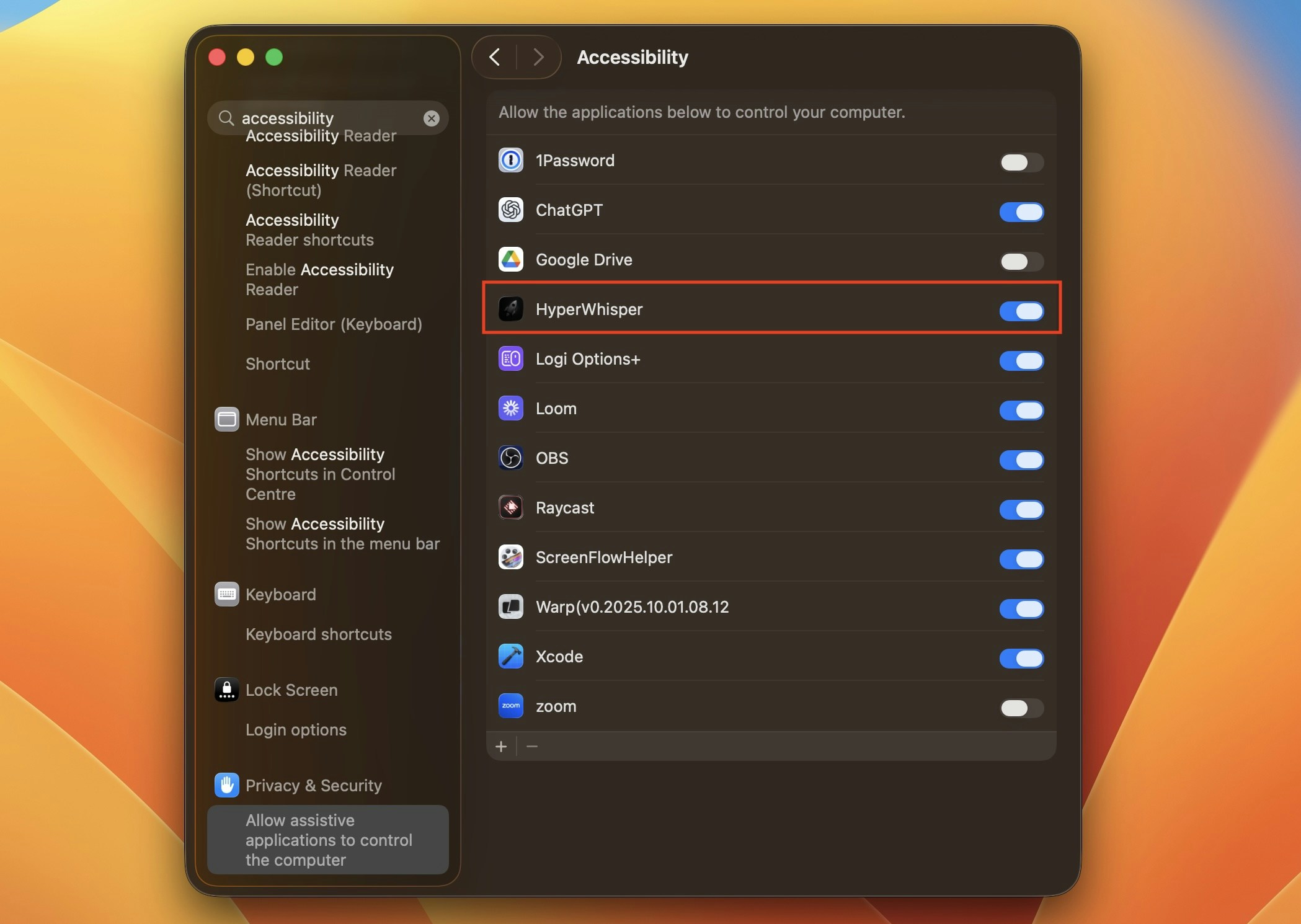
Unlike Microphone, macOS does not show an automatic prompt for Accessibility — you have to grant it manually:
Choose **System Settings → Privacy & Security → Accessibility**.
Click the lock icon and authenticate, then enable **HyperWhisper** in the list.
Quit and reopen the app so the new permission takes effect.
If Accessibility is missing, HyperWhisper shows a banner on the home screen with a one-click link to the right pane in System Settings.
**Without it:** Auto-paste does nothing (transcript stays on clipboard); bare-modifier push-to-talk doesn't activate. Standard hotkey combos still work.
 ## Screen Recording
**Optional** — only needed if you use **Screen OCR mode**, which reads on-screen text into your transcript context. If you don't use that mode, you don't need this permission.
If you enable Screen OCR mode, macOS prompts the first time it captures the screen. Grant at **System Settings → Privacy & Security → Screen Recording** and restart HyperWhisper.
**Without it:** Screen OCR mode fails silently. Other modes are unaffected.
## Input Monitoring
**Not required.** HyperWhisper uses macOS's standard global hotkey API and the Accessibility API for advanced push-to-talk — neither needs Input Monitoring. If macOS or another tool prompts you to grant Input Monitoring to HyperWhisper, it's safe to decline.
## Resetting permissions
If permissions get stuck or you've granted them to an old build:
```bash theme={null}
tccutil reset Microphone com.hyperwhisper.app
tccutil reset Accessibility com.hyperwhisper.app
tccutil reset ScreenCapture com.hyperwhisper.app
```
Then relaunch HyperWhisper and re-grant when prompted.
Replace `com.hyperwhisper.app` with the bundle ID of your build if you're running a development version.
## Screen Recording
**Optional** — only needed if you use **Screen OCR mode**, which reads on-screen text into your transcript context. If you don't use that mode, you don't need this permission.
If you enable Screen OCR mode, macOS prompts the first time it captures the screen. Grant at **System Settings → Privacy & Security → Screen Recording** and restart HyperWhisper.
**Without it:** Screen OCR mode fails silently. Other modes are unaffected.
## Input Monitoring
**Not required.** HyperWhisper uses macOS's standard global hotkey API and the Accessibility API for advanced push-to-talk — neither needs Input Monitoring. If macOS or another tool prompts you to grant Input Monitoring to HyperWhisper, it's safe to decline.
## Resetting permissions
If permissions get stuck or you've granted them to an old build:
```bash theme={null}
tccutil reset Microphone com.hyperwhisper.app
tccutil reset Accessibility com.hyperwhisper.app
tccutil reset ScreenCapture com.hyperwhisper.app
```
Then relaunch HyperWhisper and re-grant when prompted.
Replace `com.hyperwhisper.app` with the bundle ID of your build if you're running a development version.